 When you right-click on an icon in the Windows 7 Taskbar, the Jump List pops up which shows a list of common tasks for the corresponding application. But where have the Restore, Maximize and Close options gone?
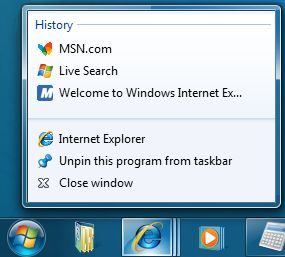
Fig 1: Jump Lists in Windows 7 Taskbar
To view the Restore, Minimize and the Close options in the right-click menu for a taskbar icon, press the SHIFT key down and then right-click on an icon. This shows the window menu (Restore | Minimize | Move | Close)
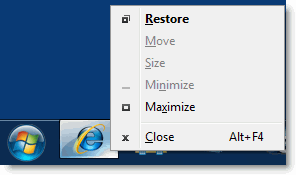
Fig 2: SHIFT + Right-click on a taskbar icon
(Note that you can also right-click on the window thumbnail to get this menu.)
Using Shift + Right-click on grouped icon Menu with show the Restore All | Minimize All | Close All options.
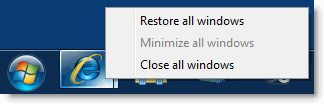
Fig 3: SHIFT + Right-click on a taskbar group icon
Keyboard Shortcuts for Windows 7
Taskbar (Superbar) Modifiers
| Shift + Click on icon | Open a new instance |
| Middle-click on icon | Open a new instance |
| Ctrl + Shift + Click on icon | Open a new instance with Admin privileges |
| Shift + Right-click on icon | Show window menu (Restore / Minimize / Move / etc) Note: Normally you can just right-click on the window thumbnail to get this menu |
| Shift + Right-click on grouped icon | Menu with Restore All / Minimize All / Close All, etc. |
| Ctrl + Click on grouped icon | Cycle between the windows (or tabs) in the group |
One small request: If you liked this post, please share this?
One "tiny" share from you would seriously help a lot with the growth of this blog. Some great suggestions:- Pin it!
- Share it to your favorite blog + Facebook, Reddit
- Tweet it!
